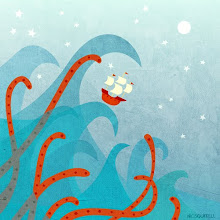
A hot tropical illustration so I can pretend it's not raining yet again.
Walking in Pittswood
Lovely weather for Monday's bank holiday so went for a walk in the woods.
Of course, it's raining again today...
Sketchbook pages
Tunbridge Wells illustration
Illustration loosely based on Tunbridge Wells, Kent.
Made using iDraw on the iPad.
This took me AGES due to going over the top on detail, roof tiles, bricks etc, although you can't really see that in this small thumbnail.
Favourite art apps for iPad
A lot of the images I have been producing lately have been made on my iPad.
---------------------------------------------------------------
--------------------------------------------------------------------
ArtStudio is another excellent raster app for the iPad and iPhone, and only it's smaller output size of 2448 x 3264 (iPad) pushes it down my favourites list. It has a huge range of brushes which can be customised, and you can make your own. If you like Corel Painter or Photoshop, you will find ArtStudio's wide range of features familiar. It has too many fab features for me to include here, so if you are OK with the output size, this could be the one for you. Output is via iTunes or email as a JPG, PNG or PSD.
I mostly use vector apps because they can be turned into large sized JPGs suitable for big prints, but some of the raster apps have a fairly big output too. Normally I like to produce images around 7000 x 7000 pixels.
Here are my faves:
Adobe Ideas is a really simple to use vector app for the iPad and iPhone, although it doesn't have the more complicated features of most vector software. There is a choice of brush types, line widths, colours and transparency, and 10 layers. Images can be synced to Adobe Creative Cloud, and edited in Illustrator CS5 or 6 (which I don't have...) and can be exported as a PDF via email.
--------------------------------------------------------------------------
Inkpad is a vector app for iPad. It is fairly simple to use but has lots of features and exports via email as PNG, PDF and SVG.
--------------------------------------------------------------------
iDraw is a fully featured vector app for the iPad. It is good for tightly aligned technical drawings and also for freehand more organic images. It can export to Dropbox, iTunes, or via email as a PDF, SVG, PNG or JPG.
------------------------------------------------------------
Sketchbook Ink is a relatively simple vector based for the iPad. I would use it more, but the maximum output is PNG at 4096 x 3072 pixels, and for that size output I would rather use a raster app. It has Dropbox, iTunes and email export. I haven't used it for any finished pieces yet so no pic with this one. On the plus side, the brushes are lovely and fluid and it is easy to use.
---------------------------------------------------------------
Procreate is a raster app for the iPad, and is my current favourite. The canvas is a maximum of 4096x4096 which is about as big as you can get with a raster iPad app. At this size it only has 2 available layers, so you have to work around that. If you use a smaller canvas, you get more layers. The brushes are lovely and you can customise them and make your own, or download more via in-app purchases and from the community forums. Export is via Dropbox, iTunes or email as a PSD, JPG or PNG.
--------------------------------------------------------------------
ArtStudio is another excellent raster app for the iPad and iPhone, and only it's smaller output size of 2448 x 3264 (iPad) pushes it down my favourites list. It has a huge range of brushes which can be customised, and you can make your own. If you like Corel Painter or Photoshop, you will find ArtStudio's wide range of features familiar. It has too many fab features for me to include here, so if you are OK with the output size, this could be the one for you. Output is via iTunes or email as a JPG, PNG or PSD.
-----------------------------------------------------------------------
ArtRage is a very 'painty' raster app for iPad, iPhone and also for Windows or Mac (at a fraction of the price of the usual painting software). If you have the Windows or Mac version, you can record your iPad painting as a script and magically make it bigger on your computer.
The iPad app has a range of very realistic textured art materials, paper and canvas textures and layers. There are no selection or text tools in the iPad & iPhone versions, which is a shame. Max size just using the iPad app is 2048x2048 but using the script feature you can resize to much larger (this one is 6667 x 5000) although not all the brush strokes work well resized so it needs a bit of experimentation to find out what looks good.
Export via Dropbox, iTunes or email as a JPG or PNG.
How to patinate silver using an egg
I make jewellery, and sometimes silver jewellery looks just too bright and new. I like to give it a patina to soften and age it. Normally this is done with Liver of Sulphur (potassium sulphide) which gives off nasty fumes. I'm not a big fan of nasty fumes, and always like to go for the simple solution, so I prefer to use an egg.
Start by hard boiling your egg. I put it in a pan of cold water, bring to the boil and boil for 7 minutes.
Don't bother peeling it, just cut roughly in half through the yolk while still warm. If it breaks up, it doesn't matter.
Put the egg and the silver into a sealed container (I use a jar with a lid, or else an old plastic food container) and leave somewhere warmish for 24 hours. Give it a shake after a few hours so that all parts of the jewellery are in contact with the eggy gasses.
Hold your nose, resist the temptation to eat the egg and throw it away. The jewellery will be black. Use some fine steel wool, a pan scourer, a rough cloth or the back of an old spoon (depending on the finish you want) to rub the patina off the raised areas of your jewellery, leaving the the recesses darker.
This is a piece made from silver clay paper which was cut, hole punched and layered. I fired it with a blow torch on the grate of our fireplace, and egg oxidised it. The oxidising works well on both matte and shiny finishes.
Start by hard boiling your egg. I put it in a pan of cold water, bring to the boil and boil for 7 minutes.
Don't bother peeling it, just cut roughly in half through the yolk while still warm. If it breaks up, it doesn't matter.
Put the egg and the silver into a sealed container (I use a jar with a lid, or else an old plastic food container) and leave somewhere warmish for 24 hours. Give it a shake after a few hours so that all parts of the jewellery are in contact with the eggy gasses.
Hold your nose, resist the temptation to eat the egg and throw it away. The jewellery will be black. Use some fine steel wool, a pan scourer, a rough cloth or the back of an old spoon (depending on the finish you want) to rub the patina off the raised areas of your jewellery, leaving the the recesses darker.
This is a piece made from silver clay paper which was cut, hole punched and layered. I fired it with a blow torch on the grate of our fireplace, and egg oxidised it. The oxidising works well on both matte and shiny finishes.
X Y Dead - Zombie Apocalypse
E, J and A's most excellent film trailer for their A Level Media project. Watch, enjoy, and like.
Subscribe to:
Posts (Atom)